[Unity] How to Shrink a Unity WebGL Build So It Loads as a Web App
Published: May 5, 2026 (Updated September 21, 2026)
For: Developers shipping a Unity WebGL build as a web app and fighting load times
This article is for you if:
- Your build came out at tens of megabytes and mobile users leave before it starts
- You can't tell what to cut first — wasm? data? textures?
- The page goes black on an iPhone, the tab dies, or loading stalls halfway
Quick-reference summary
- Two files decide everything: wasm and data. Shrinking anything else won't be felt
- Brotli is a pair: the build and the server headers. A wrong header leaves the app stuck at 0% forever
- Cut wasm with Managed Stripping Level: High + Strip Engine Code, cut data with texture Max Size
- In Unity 6 the memory knobs are Initial / Maximum Memory Size, not
webGLMemorySize - Keeping content out of the build (fetching it later as static files) often beats compressing it
- Loads fail in four recognizable ways — the error cheat sheet near the end has the console output I captured from each one
Introduction
A Unity WebGL build runs as a web app the moment you drop it in public/. It runs — but open it on a phone and the loading never seems to end. What starts in seconds on a wired desktop leaves you staring at a white screen on the train.
For PoseMirror, the first thing I did was measure what was actually heavy. Before touching a single Player Setting, looking at the size of the four output files tells you where to cut in about a minute. This article walks through the optimizations in the order they pay off, measured on the build that is live today.
Environment
| Item | Value |
|---|---|
| Unity | 6000.0.58f2 |
| Render pipeline | URP |
| Scripting backend | IL2CPP (fixed for WebGL) |
| Hosting | Firebase Hosting |
Step zero: measure the four output files
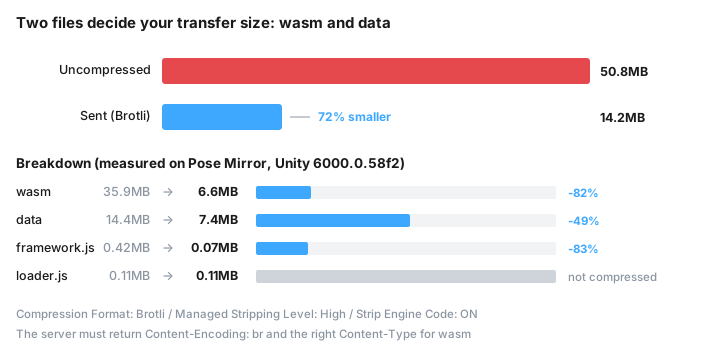
A Unity WebGL build produces exactly four files under Build/. Here are PoseMirror's real numbers (September 2026 build).
| File | Uncompressed | Sent (Brotli) | Reduction |
|---|---|---|---|
poseMirror.wasm.unityweb |
35.9MB | 6.6MB | -82% |
poseMirror.data.unityweb |
14.4MB | 7.4MB | -49% |
poseMirror.framework.js.unityweb |
0.42MB | 0.07MB | -83% |
poseMirror.loader.js |
0.11MB | 0.11MB (not compressed) | — |
| Total | 50.8MB | 14.2MB | -72% |
Two things fall out of this table.
- wasm and data are 99% of the transfer. Trimming loader or framework is a waste of your afternoon
- wasm compresses beautifully (-82%), data does not (-49%) — data already holds compressed textures
So the order is: turn on compression first, and if it's still heavy, the problem is in data (your assets).
You can measure the uncompressed sizes yourself with Node.js.
node -e "
const fs=require('fs'),zlib=require('zlib');
for (const f of process.argv.slice(1)) {
  const b = fs.readFileSync(f);
  console.log(f, b.length, '->', zlib.brotliDecompressSync(b).length);
}
" Build/*.unityweb
1. Strip code you never call (shrinking wasm)
The wasm file is IL2CPP-generated C++ compiled down. There is no trick here other than deleting code you don't use.
Set Managed Stripping Level to High
Player Settings → Other Settings → Optimization:
- Managed Stripping Level: High
- Strip Engine Code: ON
PoseMirror ships with both of these on, at 35.9MB of uncompressed wasm. High means "remove types and methods nothing references," which also means anything reached only through reflection gets removed with it.
When that happens the build succeeds and then fails at runtime with TypeLoadException or MissingMethodException — and it never reproduces in the editor. Protect what you need in link.xml.
<!-- Assets/link.xml -->
<linker>
  <!-- Types built dynamically through JsonUtility must survive stripping -->
  <assembly fullname="Assembly-CSharp">
    <type fullname="PoseData" preserve="all"/>
  </assembly>
</linker>
After raising the level, build once and touch the real app. Skip that and the breakage shows up only on your users' machines.
Remove packages you don't use
Unused packages still in the Package Manager are referenced, so stripping never touches them. These sneak in at project creation:
Unity AnalyticsAdvertisementIn-App PurchasingVisual ScriptingInput System(if you're still on the old Input Manager)
Lower the exception support level
Player Settings → Publishing Settings → Enable Exceptions:
- Explicitly Thrown Exceptions Only (what PoseMirror uses)
Full With Stacktrace embeds line tables into the wasm and inflates it. Raise it while debugging, lower it for the public build.
2. Brotli takes both Unity's side and the server's side
This is where most builds break. Compressing in Unity is meaningless unless the server tells the browser the bytes are compressed.
The Unity side
Player Settings → Publishing Settings:
- Compression Format: Brotli
- Decompression Fallback: ON (what PoseMirror uses)
Decompression Fallback is insurance: if the server never sends Content-Encoding, loader.js unpacks the files itself. Turning it on renames the output from .br to .unityweb, so the file names in your Build/ folder tell you which setting produced them.
Whether that insurance is on completely changes what a server misconfiguration does. I measured it with a small local server (Chromium 149, localhost).
| What the server sends | Result |
|---|---|
Content-Encoding: br (correct) |
starts in 5s |
no Content-Encoding at all |
starts in 6s — loader.js decompresses it itself |
Content-Encoding: gzip (wrong) |
never starts, frozen at 0% |
So with Decompression Fallback on, forgetting the header still works (you pay for JS-side decompression). What breaks the app is claiming the wrong encoding.
Turn the fallback off and the decompressor leaves loader.js — but then a forgotten header is fatal too.
The server side (Firebase Hosting)
This is the configuration PoseMirror actually runs on.
{
  "hosting": {
    "headers": [
      {
        "source": "**/Build/*.framework.js.unityweb",
        "headers": [{ "key": "Content-Type", "value": "application/javascript" }]
      },
      {
        "source": "**/Build/*.wasm.unityweb",
        "headers": [{ "key": "Content-Type", "value": "application/wasm" }]
      },
      {
        "source": "**/Build/*.data.unityweb",
        "headers": [{ "key": "Content-Type", "value": "application/octet-stream" }]
      },
      {
        "source": "**/Build/*.unityweb",
        "headers": [
          { "key": "Content-Encoding", "value": "br" },
          { "key": "Cache-Control", "value": "public, max-age=604800" }
        ]
      }
    ]
  }
}
Content-Type: application/wasm is the one people forget. Without it the browser can't use streaming compilation (compiling while downloading), so compilation starts only after the whole file has landed. If your console warns about streaming compilation, look here first.
Caching bites because Unity's file names never change
The config above caches for seven days, and Unity writes the same file names every build. Rebuild and a user can end up with a new loader plus a seven-day-old wasm — Unity then fails to initialize.
PoseMirror runs a post-build script that stamps each file's content hash onto the URL.
// The page loads them with ?v=<content hash>
const config = {
  dataUrl:      "/poseMirror/Build/poseMirror.data.unityweb?v=239c19fcf4",
  frameworkUrl: "/poseMirror/Build/poseMirror.framework.js.unityweb?v=268800222c",
  codeUrl:      "/poseMirror/Build/poseMirror.wasm.unityweb?v=452b66723b",
};
Files whose contents didn't change keep their v and come from cache, so only the changed file is downloaded once. The loader and the wasm are always from the same generation, so the mismatch can't happen.
3. Shrink data (textures and meshes)
Data (14.4MB uncompressed) is the assets referenced by your scenes. Compression barely helps here, so put smaller things in.
Drop the texture Max Size
Textures that ship with 3D models are almost always too big. The character model in PoseMirror came with a 4096×4096px, 17.3MB normal map alone.
The import settings in use:
- Max Size: 1024
- Compression: Normal Quality
- Use Crunch Compression: ON (compressor quality 60)
Crunch compresses on top of the GPU format, which squeezes the part of data that Brotli can't touch. It costs build time and a little CPU work on load.
For a single character on screen, 1024 is visually indistinguishable in practice. Check whether you're still shipping 2048.
Assets not in a scene aren't in the build
Unity excludes assets no scene references. The PoseMirror project contains a 70MB high-poly anatomy model that isn't in the scene, and not one byte of it reaches the output.
Two exceptions:
- Everything under
Resources/ships, referenced or not. PoseMirror keeps it effectively empty (4KB) StreamingAssets/is copied verbatim, uncompressed
When the build is heavy for no reason you can name, open Resources/ first.
On the mesh side
- Model Importer Read/Write Enabled: OFF (on means a second copy in CPU memory)
- Mesh Compression: Medium–High
- Don't import animation clips you never play (exclude them in the Animation tab)
4. Memory settings (renamed in Unity 6)
The memorySize option for createUnityInstance and the old WebGL Memory Size field you'll find in search results are out of date. Unity 6 gives you three knobs.
Player Settings → Publishing Settings → Memory:
| Setting | PoseMirror | Meaning |
|---|---|---|
| Initial Memory Size | 512MB | Heap reserved at startup |
| Maximum Memory Size | 2048MB | Hard ceiling; going past it stops the app |
| Memory Growth Mode | Geometric | Grow geometrically when the heap runs out |
When the heap can't be allocated, Unity fails at the very end of startup. Here's the console output I captured by squeezing the available memory locally:
failed to asynchronously prepare wasm: RangeError: WebAssembly.instantiate():
Out of memory: Cannot allocate Wasm memory for new instance
It looks like "the page was too heavy to load," but this single allocation is what actually fails (see the error cheat sheet below). iOS Safari has a tighter per-tab limit than desktop and is widely reported to white-screen or silently reload — I haven't measured that on a physical iPhone myself.
- Don't inflate Initial. "Let's just use 1024MB" is how startup fails on an iPhone
- Don't leave Maximum unbounded. A ceiling turns a silent death into a Unity-side error you can catch
- Growth Mode
Nonepins the heap at the initial value and dies the instant it isn't enough
Don't settle these numbers without opening the app on a real iPhone. This is the one part you cannot measure on a desktop.
5. Cut rendering cost (resolution and quality)
Everything above was transfer size. On a phone, drawing is expensive too: devicePixelRatio is 2–3 on Retina-class devices, so a canvas at native scale paints 4–9× the pixels of a desktop, every frame.
PoseMirror hasn't adopted this yet (it still renders at native scale), so treat this section as the technique rather than a measured result. The straightforward implementation detects the device in JS and tells Unity.
// index.html / app.js
const isMobile = /iPhone|iPad|iPod|Android/i.test(navigator.userAgent);

createUnityInstance(canvas, config, onProgress).then((instance) => {
  if (isMobile) {
    instance.SendMessage("GameManager", "SetMobileMode", "1");
  }
});
// Unity C# side
public class GameManager : MonoBehaviour
{
    public void SetMobileMode(string _)
    {
        // Half the resolution means a quarter of the pixels
        Screen.SetResolution(Screen.width / 2, Screen.height / 2, false);
        // Drop to the lowest quality level
        QualitySettings.SetQualityLevel(0, true);
    }
}
On URP, keeping a separate mobile quality profile with Shadows: OFF / Anti Aliasing: Disabled / Render Scale around 0.7 makes the switch a one-liner.
6. Shorten the perceived wait
Once the bytes are as small as they'll go, what's left is how the wait looks.
Keep content out of the build and fetch it as static files
PoseMirror has 353 pose presets totaling 8.2MB. Putting them in the Unity build would add roughly 60% to the transfer. They aren't in it.
The presets live at public/poseMirror/presets/<id>/ as JSON plus webp thumbnails, and the page fetches one when a card is picked.
const PRESET_BASE = "/poseMirror/presets/";

// Load the light index up front; fetch a pose only when it's chosen
async function applyPreset(preset) {
  const res = await fetch(`${PRESET_BASE}${preset.id}/pose.json`);
  window.unityInstance.SendMessage("PoseBootstrap", "LoadPoseFromJson", await res.text());
}
With this split, adding presets costs zero startup time and doesn't require redeploying the Unity build at all. Anything that is "data to read later" rather than "a feature of the app" belongs on this side of the line.
Put the progress bar outside Unity
The third argument of createUnityInstance is a progress callback. Nothing appears on screen until Unity is up, so show progress from an HTML overlay.
const overlay = document.getElementById('unity-loading-overlay');
const bar = document.getElementById('loading-bar');
const loadingText = document.getElementById('loading-text');

createUnityInstance(unityCanvas, config, (progress) => {
  const pct = Math.round(progress * 100);
  bar.style.width = pct + '%';
  loadingText.textContent = `Loading... ${pct}%`;
}).then((instance) => {
  overlay.style.opacity = '0';
  setTimeout(() => { overlay.style.display = 'none'; }, 500);
}).catch((err) => {
  // Never leave a white screen. Without this the user just sees a frozen page
  loadingText.textContent = 'Loading failed. Please reload the page.';
  loadingText.style.color = '#d9534f';
  console.error('Unity load error:', err);
});
That .catch() matters more than it looks. When a load fails on memory pressure or a file mismatch, a progress bar frozen at 60% is the worst thing you can show.
Error cheat sheet: what a failed load actually prints
"It's too heavy, so it crashes" turns into a handful of distinct signatures once you open the console. Everything below was reproduced on the real PoseMirror build by breaking one serving condition at a time (Chromium 149, served from localhost).
What the user sees comes down to two pictures.

▲ Frozen at 0% — the files never arrived or never decompressed (cases 2 and 4)
Stops around 90%, then fails — the download finished and startup is what broke (cases 1 and 3). Whatever failure message your page renders appears at that point.
Case 1: the heap can't be allocated ("too heavy to load")
failed to asynchronously prepare wasm: RangeError: WebAssembly.instantiate():
  Out of memory: Cannot allocate Wasm memory for new instance
abort(RangeError: WebAssembly.instantiate(): Out of memory: ...) at Error
- Symptom: the bar climbs to about 90% and fails there
- How I reproduced it: launched Chromium with
--js-flags=--wasm-max-mem-pages=256(16MB of wasm memory) - Why: Unity allocates its heap in one shot at instantiation. If it doesn't fit, the failure lands after every byte has already downloaded — which is exactly why it feels like "the heavy page died"
- Fix: lower Initial Memory Size (512MB → 256MB), cut data so less stays resident, and set Maximum Memory Size so you get this error instead of a silent death
One more thing: when this fires, other wasm modules on the page (MediaPipe, in PoseMirror's case) fail to initialize too. Read the first error, not the last.
Case 2: the wrong Content-Encoding
net::ERR_CONTENT_DECODING_FAILED
Unable to parse /poseMirror/Build/poseMirror.framework.js.unityweb?v=268800222c!
  The file is corrupt, or compression was misconfigured?
  (check Content-Encoding HTTP Response Header on web server)
Uncaught ReferenceError: unityFramework is not defined
- Symptom: frozen at 0%. Unity never runs a single byte
- How I reproduced it: served Brotli-compressed files with
Content-Encoding: gzip - Fix: correct the header. Check it with
curl -sI https://example.com/Build/xxx.wasm.unityweband make sure the encoding matches how the file was actually compressed - Note: merely forgetting the header is survivable when Decompression Fallback is on (see the measurements above). Announcing the wrong one is not
Case 3: mixed build generations (a caching accident)
failed to asynchronously prepare wasm: LinkError: WebAssembly.instantiate():
  Import #3 "wasi_snapshot_preview1" "fd_fdstat_get": function import requires a callable
- Symptom: fails within a few seconds even though every file returned 200
- How I reproduced it: served the current framework and data next to a wasm from a three-month-old build
- Why: framework.js and wasm are a matched pair from one build; a stale half means the imports don't line up
- Fix: pin the pair with the
?v=<content hash>stamping shown earlier; if it's already out there, changevto retire the cached copy
Case 4: a Build file isn't there (404)
Failed to load resource: the server responded with a status of 404 (Not Found)
failed to asynchronously prepare wasm: CompileError: WebAssembly.instantiate():
  expected magic word 00 61 73 6d, found 6e 6f 74 20 @+0
- Symptom: the bar stalls partway
- Why:
6e 6f 74 20is ASCII for"not ". The browser is trying to compile your 404 page as WebAssembly. Wrong path, or the file never deployed - Fix:
curl -sIall four files inBuild/and confirm they return 200.expected magic wordmeans "look at what this file actually contains"
Bonus: your error message can be overwritten by progress
In the case 4 run, .catch() printed its message and then a progress callback fired and put Loading... 90% back on screen. To the user it just looks frozen.
let failed = false;

createUnityInstance(unityCanvas, config, (progress) => {
  if (failed) return;   // don't let a late progress tick erase the error
  const pct = Math.round(progress * 100);
  bar.style.width = pct + '%';
  loadingText.textContent = `Loading... ${pct}%`;
}).catch((err) => {
  failed = true;
  loadingText.textContent = 'Loading failed. Please reload the page.';
  loadingText.style.color = '#d9534f';
  console.error('Unity load error:', err);
});
Summary
- Measure the four files in
Build/first — wasm-heavy and data-heavy need different fixes - wasm → Managed Stripping Level: High + Strip Engine Code, with a real-device check as part of the same step
- Transfer → Brotli plus
Content-Encoding: brandapplication/wasmon the server. A wrong header stops startup dead - data → texture Max Size and Crunch compression, and keep junk out of
Resources/ - Memory → Unity 6 uses Initial / Maximum Memory Size; when it's short you get
Out of memoryat the end of startup - Perceived speed → keep late-loadable data out of the build, and show progress and failures in HTML
- When it breaks, open the console: frozen at 0% means serving config, failing at ~90% means memory or mixed builds
PoseMirror runs on exactly this setup: a Unity WebGL app at 14.2MB over the wire. You can watch it load at PoseMirror.
14.2MB over the wire. Nothing to install.
See the Unity WebGL app this article optimizes, running on your own phone.
▶ Open the 3D pose tool in your browserRelated (English):
- Best free 3D pose reference web apps for artists (2026) — what the app in this article looks like next to other tools
Related (Japanese):
- 【Firebase】Unity WebGLを無料で公開する手順 — the deployment walkthrough
- 【Unity】WebGLでピンチズームが効かない原因と解決法 — touch handling on mobile