[Blender→Unity] Bones Missing After FBX Export: Cause and Fix
Published: September 20, 2026
For: Anyone who exported a skinned mesh or rig from Blender as FBX and found the bones missing in Unity
The problem
You export a model from Blender and import it into Unity, and the bones are gone.
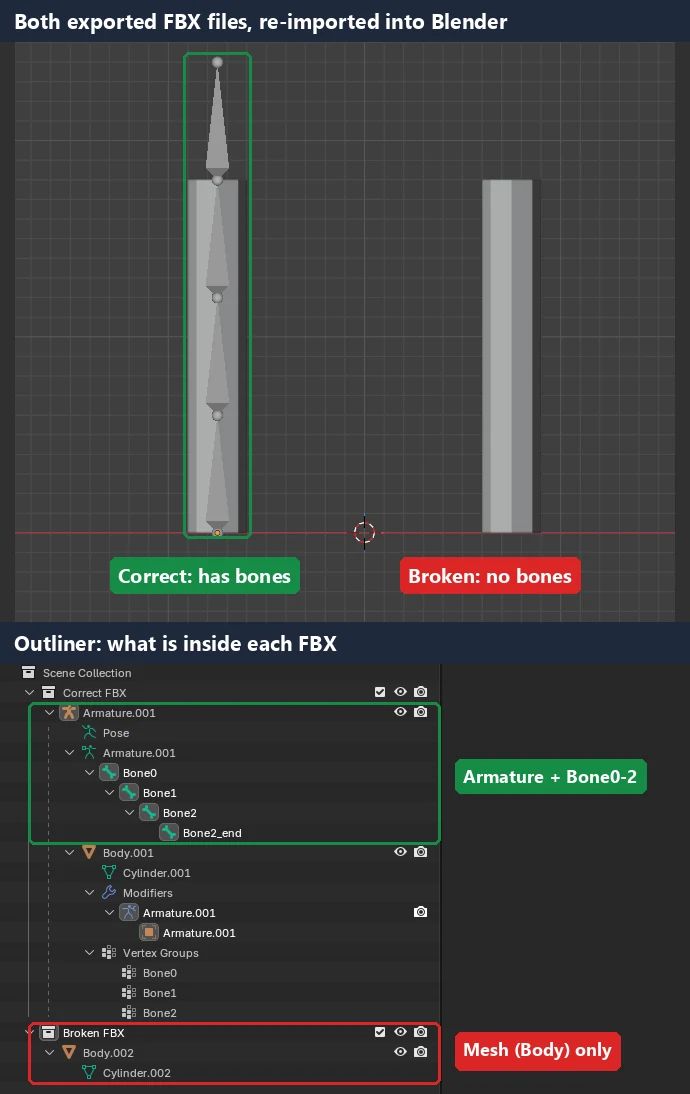
Cause
The armature was not included in the export. If you hide the armature and export with "Limit to: Selected Objects", the bones do not make it into the FBX.
Fix
- Before exporting, open the eye icon of the armature in the Outliner and select both the armature and the mesh, then export
- After importing into Unity, check that the mesh has a Skinned Mesh Renderer and the bone count is right
Environment
| Item | Version |
|---|---|
| Blender | 5.0.1 (English UI) |
| Unity | 6000.0.58f2 (Unity 6, English UI) |
| Test model | 1.8 m tall cylinder + 3 bones (Bone0-2) skinned with automatic weights |
Fix in detail: exporting with the bones included
The steps below show, on the actual screens, how to export an FBX that contains the bones. After that, you will find the steps to reproduce the problem.
Step 1: Open the eye icon of the armature
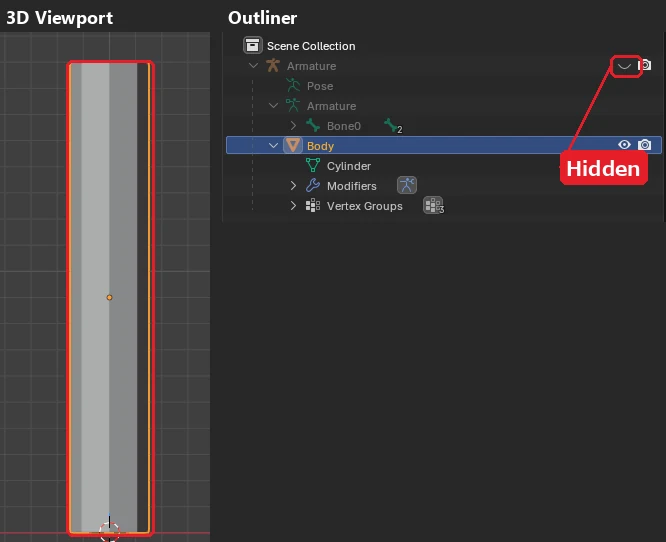
In the Outliner at the top right, click the eye icon at the right end of the Armature row. While it is closed (hidden), the bones do not appear in the 3D Viewport.
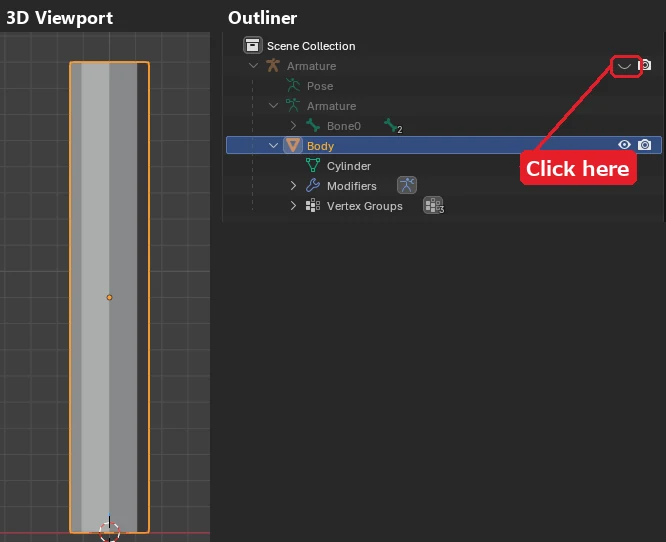
Step 2: Select both the armature and the mesh
Click Armature in the Outliner, then hold Ctrl and click Body. Both rows are highlighted, and the bones appear in the 3D Viewport.
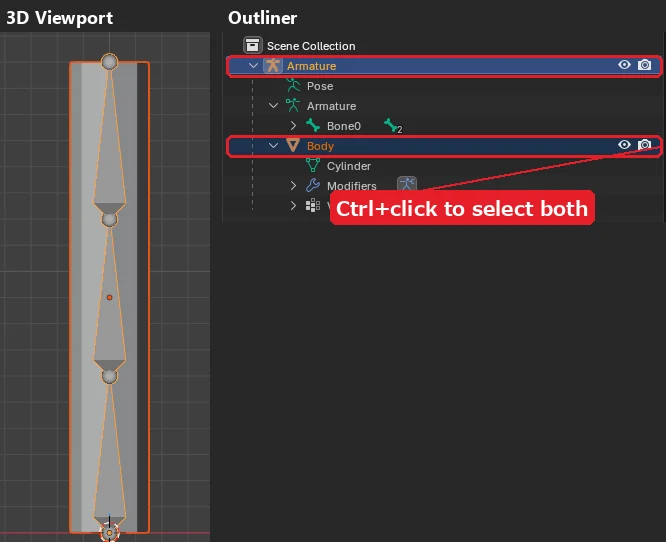
Step 3: Open File → Export → FBX
From the File menu at the top left, hover over Export and choose FBX (.fbx).
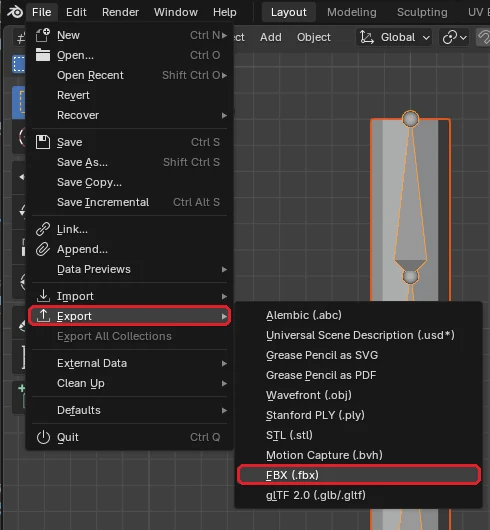
Step 4: Check the Include panel
On the right side of the export window, check two things in the Include panel.
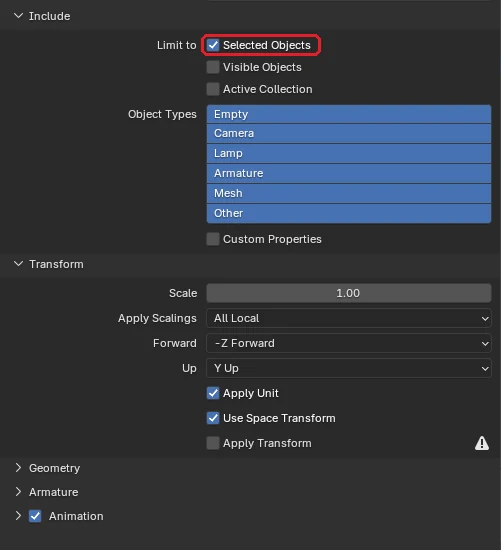
- "Limit to: Selected Objects" is checked (only the two objects selected in Step 2 are exported)
- Armature and Mesh are highlighted in Object Types (all types are selected by default)
You can leave the Armature panel at its defaults.
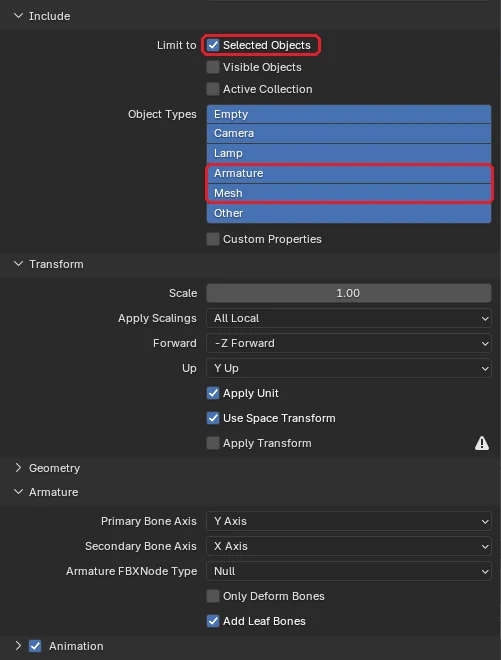
Step 5: Click Export FBX
Enter a file name at the bottom and click Export FBX at the bottom right.

Check 1: Re-import the FBX into Blender
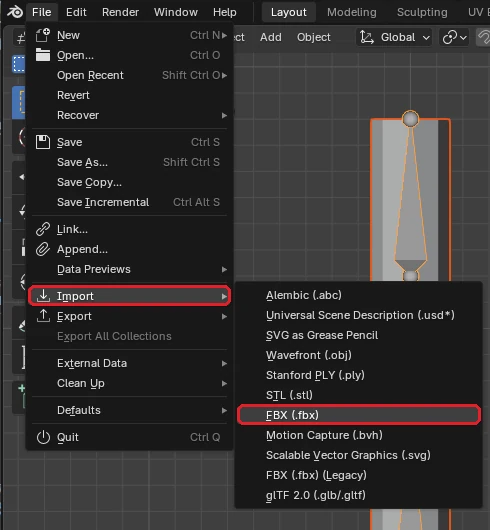
To confirm the bones are in the file, choose File → Import → FBX (.fbx) in a new scene (or a new file) and open the FBX you just exported.
Check 2: The bones appear in the Outliner
If Bone0-2 are listed under the imported armature and the bones show up in the 3D Viewport, the FBX contains the bones. If you only see Body, the armature was left out somewhere in Steps 1-4.
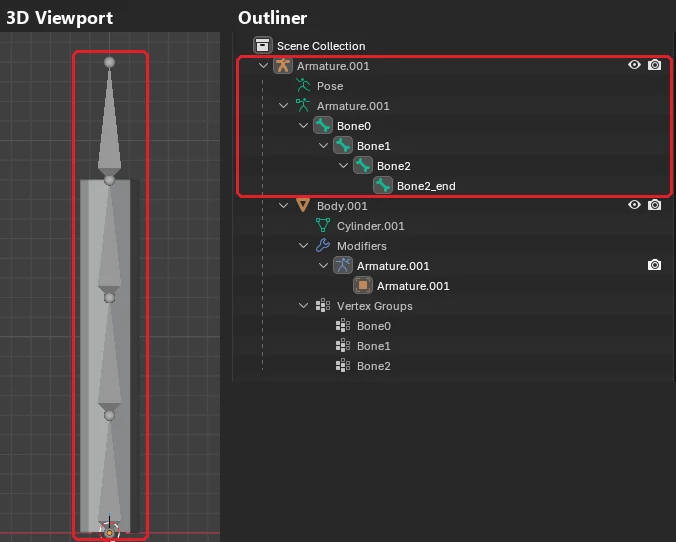
Bone2_end at the top is a tip bone added by the "Add Leaf Bones" export option, which is on by default.
When you import this FBX into Unity, the bones are listed under Armature, and Body gets a Skinned Mesh Renderer with Bone0 as its root bone.
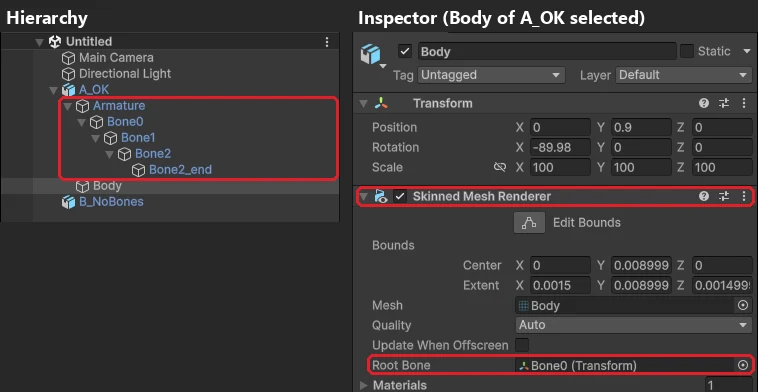
Reference: exporting from a script
The steps are the same in a script: unhide the armature before selecting it, because a hidden object cannot be selected.
import bpy

armature = bpy.data.objects["Armature"]
body = bpy.data.objects["Body"]

armature.hide_set(False)   # Step 1: unhide first
bpy.ops.object.select_all(action='DESELECT')
armature.select_set(True)  # Step 2: select both
body.select_set(True)

bpy.ops.export_scene.fbx(  # Steps 3-5
    filepath="model.fbx",
    use_selection=True,
)
If you want to export the whole scene, the safest option is to uncheck everything under "Limit to". As the table below shows, the bones are then included even if the armature is hidden.
Cause in detail: hidden objects are not part of "Selected Objects"
You can reproduce the problem with the following steps.
Reproduce 1: Hide the armature
Close the eye icon of Armature in the Outliner. The bones disappear from the 3D Viewport and only the mesh remains.
Reproduce 2: Export with "Selected Objects" checked
Open File → Export → FBX, check "Limit to: Selected Objects" and export.
When you re-import the resulting FBX, the Outliner shows only Body (the right side of the comparison image at the top).
Why the bones disappear
In Blender, an object is deselected the moment you hide it. Even if you select Armature and then hide it, it is no longer selected when you export. Calling select_get() right after hide_set(True) returns False.
So only Body is selected, and the FBX contains only the mesh.
Reference: other export settings that cause it
We exported the same rig under different conditions and counted the bones (LimbNode) inside each FBX.
| Armature | Limit to | Bones |
|---|---|---|
| Visible, both selected | Selected Objects | Included |
| Visible, mesh only selected | Selected Objects | Missing |
| Hidden | Selected Objects | Missing |
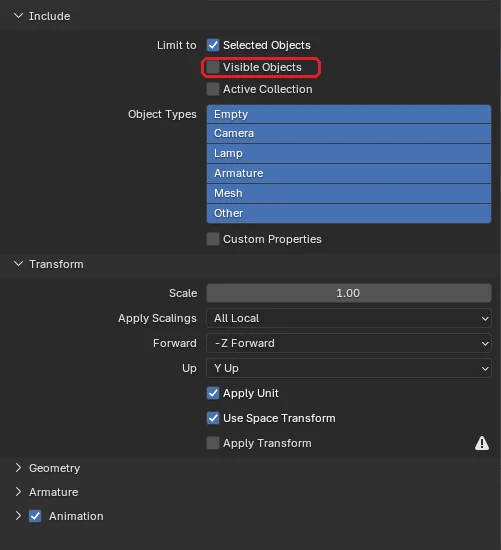
| Hidden | Visible Objects | Missing |
| Hidden | Nothing checked (all) | Included |
| Disabled in Viewports | Nothing checked (all) | Included |
| Disabled in Renders | Nothing checked (all) | Included |
"Hidden" is the eye icon in the Outliner, "Disabled in Viewports" is the monitor icon, and "Disabled in Renders" is the camera icon.
Even with the armature visible, exporting with only the mesh selected drops the bones. The real cause is not "hidden" itself but the armature being left out of the export. The "Visible Objects" option under Limit to behaves the same way: a hidden armature is not included.
Summary
- Bones go missing because the armature is not part of the export. It happens when you export a hidden armature with "Selected Objects" or "Visible Objects"
- The same happens with a visible armature if you select only the mesh
- Open the eye icon, select both the armature and the mesh, then export. For the whole scene, uncheck everything under "Limit to"
- After importing, check the Skinned Mesh Renderer and the bone count
The Scale-100 problem has a different cause and fix. See [Blender→Unity] FBX Scale Becomes 100 and Colliders Grow 100x: Cause and Fix.
Models built with this pipeline run in Pose Mirror, a free tool that turns a photo into a 3D pose.
A model imported with these FBX settings, running in the browser.
The quickest way to check a Blender→Unity setup is to rotate the real thing.
▶ Open the 3D drawing mannequin that uses this model