CLIP STUDIO Pose Scanner Not Accurate? Re-capture Poses From a Photo With a Free Tool
Published: May 31, 2026 For: Illustrators and manga artists who use pose references in CLIP STUDIO PAINT
This article is for you if:
- Your pose came out broken after importing it with CLIP STUDIO's Pose Scanner
- You're struggling with side-on or heavily tilted poses that won't scan accurately
- You want to cut manual-fixing time and check a pose from other angles
TL;DR
- CLIP STUDIO's Pose Scanner is handy, but accuracy drops on side-on or strongly tilted poses
- Instead of fixing a broken result by hand, it's often faster to re-capture the pose from the photo with the free tool Pose Mirror
- Pose Mirror runs entirely in the browser, for free, and handles tilted and one-leg-balance poses
- That said, both tools struggle with detailed hand/finger poses and photos with overlapping people (a shared limit). Use each where it's strong.
Common "breakage" with CLIP STUDIO's Pose Scanner
CLIP STUDIO PAINT ships with a "Pose Scanner" that guesses a pose from a photo and applies it to a 3D drawing figure on the canvas. It's convenient because everything stays inside Clip Studio, but in practice it tends to stumble in these cases.
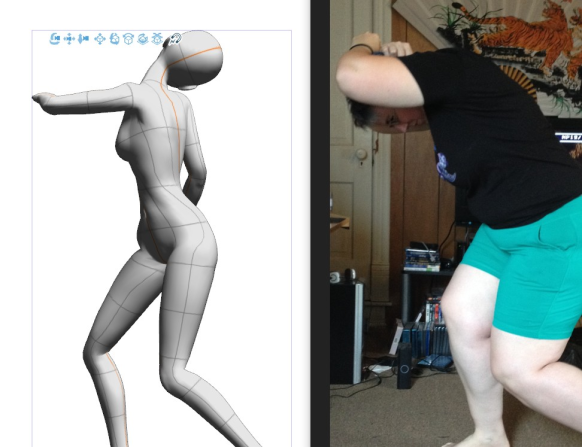
▲ CLIP STUDIO's Pose Scanner, which infers a pose from a photo
- Accuracy drops on side-on / angled poses — a near-front standing pose is fine, but a twisted or profile body often bends joints in unexpected directions
- A lot of manual fixing afterwards — even after applying, you usually end up dragging the figure's joints to correct it
- Depth is hard to adjust — dragging makes "front vs. back" fine-tuning awkward
For the accuracy details, Clip Studio's official TIPS article (Testing the Pose Scanner's use and limits) walks through which poses it handles well and which it doesn't.
The fix: don't "repair" — re-capture
Repairing a broken figure by hand takes surprisingly long. A better move is to re-capture the pose from the photo with a different engine and compare the two as a second opinion.
That's where the free, browser-only tool Pose Mirror comes in. It uses Google's AI "MediaPipe" to read the full-body joints from a photo and apply them to a 3D model. No install, no sign-up.
Three steps:
- Upload an image (pick a photo where the person is large in frame)
- Click Run Detection (the AI detects the pose automatically)
- Click Send to Model Viewer (the 3D model takes the same pose)
Examples: tilted and one-leg-balance poses work
Here are results for the kinds of poses the Pose Scanner tends to find hard — a strongly tilted pose and a balance-heavy one-leg stand.
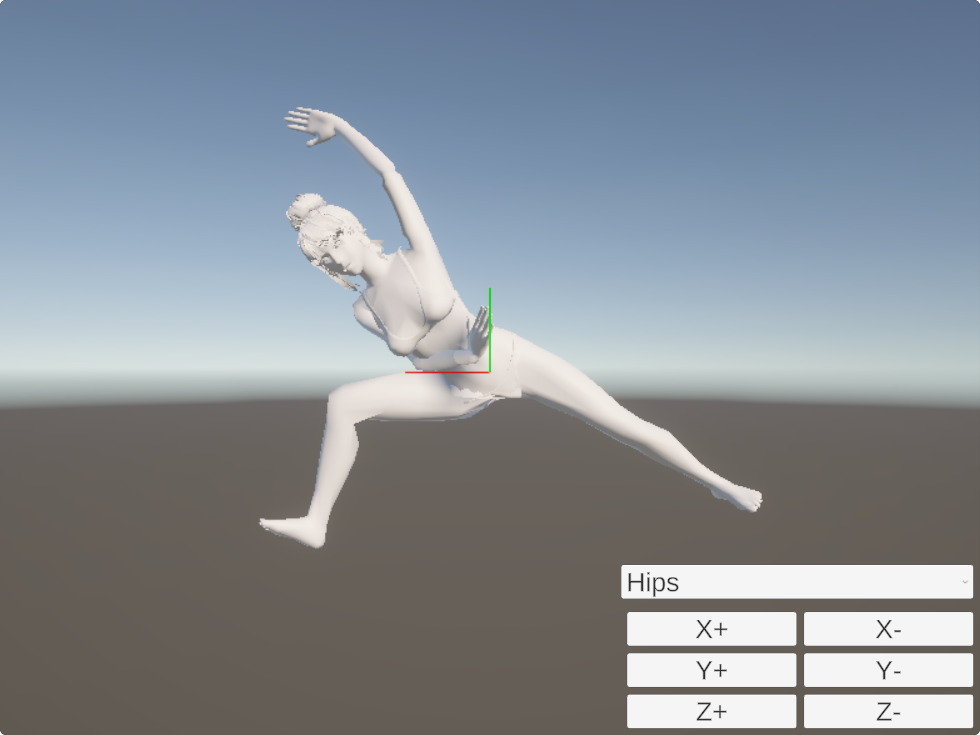
Example 1: a deeply tilted yoga pose
| Source photo (after detection) | Result on the 3D model |
|---|---|

|
|
Even with the body leaning at an angle and one arm raised, the lines of the shoulders, hips and legs came through close to the original photo. Because it's 3D, you can also check angles the photo never shows — "from behind at an angle," "from directly above," and so on.
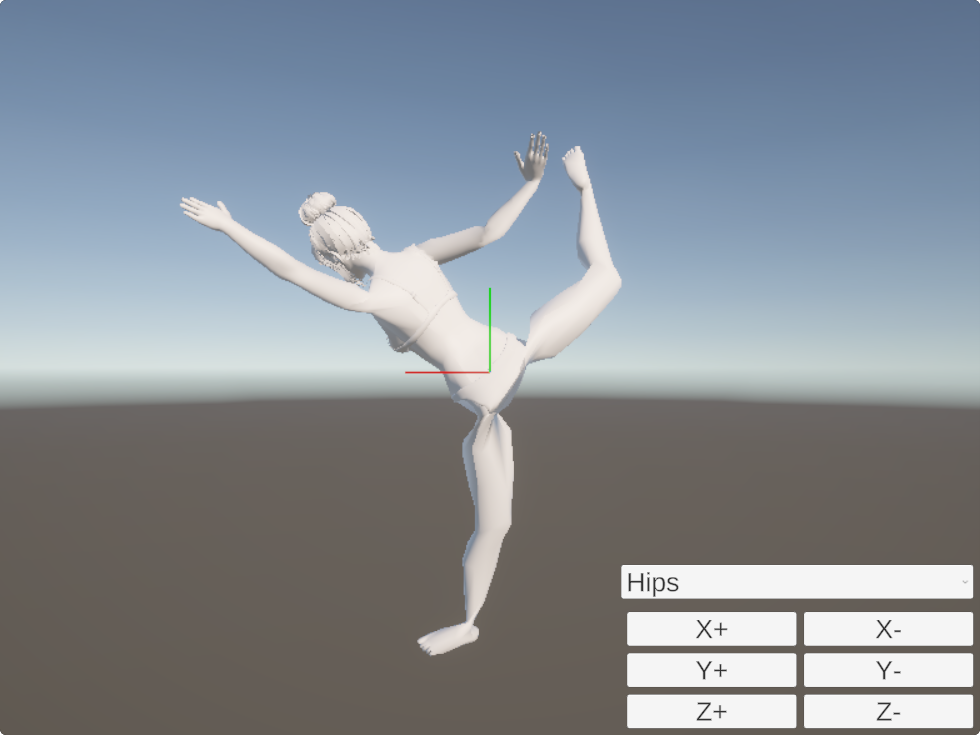
Example 2: a tricky one-leg balance
| Source photo (after detection) | Result on the 3D model |
|---|---|

|
|
Even in a balance-heavy pose — one leg raised high behind, one arm stretched forward — it reproduced cleanly as long as the whole body is clearly visible. (Photo: Unsplash / Unsplash License)
To be fair: each tool has weak spots
In fairness, Pose Mirror isn't a silver bullet either. It doesn't handle detailed hand/finger shapes, and it can't detect photos with several overlapping people. These are limits common to MediaPipe-based tools — and CLIP STUDIO's Pose Scanner is weak in the same areas.
So it's less "which one wins" and more use each where it's strong.
| Situation | CLIP STUDIO Pose Scanner | Pose Mirror |
|---|---|---|
| Keep everything inside Clip Studio | ◎ | △ (separate app) |
| Side-on / heavily tilted poses | △ | ◎ |
| Check from other angles | ○ | ◎ |
| No cost | × (Clip Studio license needed) | ◎ (free) |
| Detailed hand / finger poses | × | × |
| Photos with overlapping people | × | × |
Tips for choosing a photo that scans well
For either tool, the quality of the input photo decides the result.
- Pick a photo where the person fills at least 1/4 of the frame (too small and it won't detect)
- Use one where the full-body silhouette is clearly visible
- Prefer clear contrast between person and background over a busy background
- Even with several people in shot, it can detect if only one is large and centered
Summary
- CLIP STUDIO's Pose Scanner is handy but loses accuracy on side-on / tilted poses
- Rather than fixing by hand, re-capture from the photo with the free Pose Mirror and compare
- Pose Mirror reproduces complex poses like tilts and one-leg balances, and lets you check other angles
- Both are weak on fingers and overlapping people — use each where it's strong
If a pose won't come out right in Clip Studio, give it a try as a second opinion.
Want to test it yourself? Try Pose Mirror — one photo and your 3D pose is ready.
Related (Japanese):